
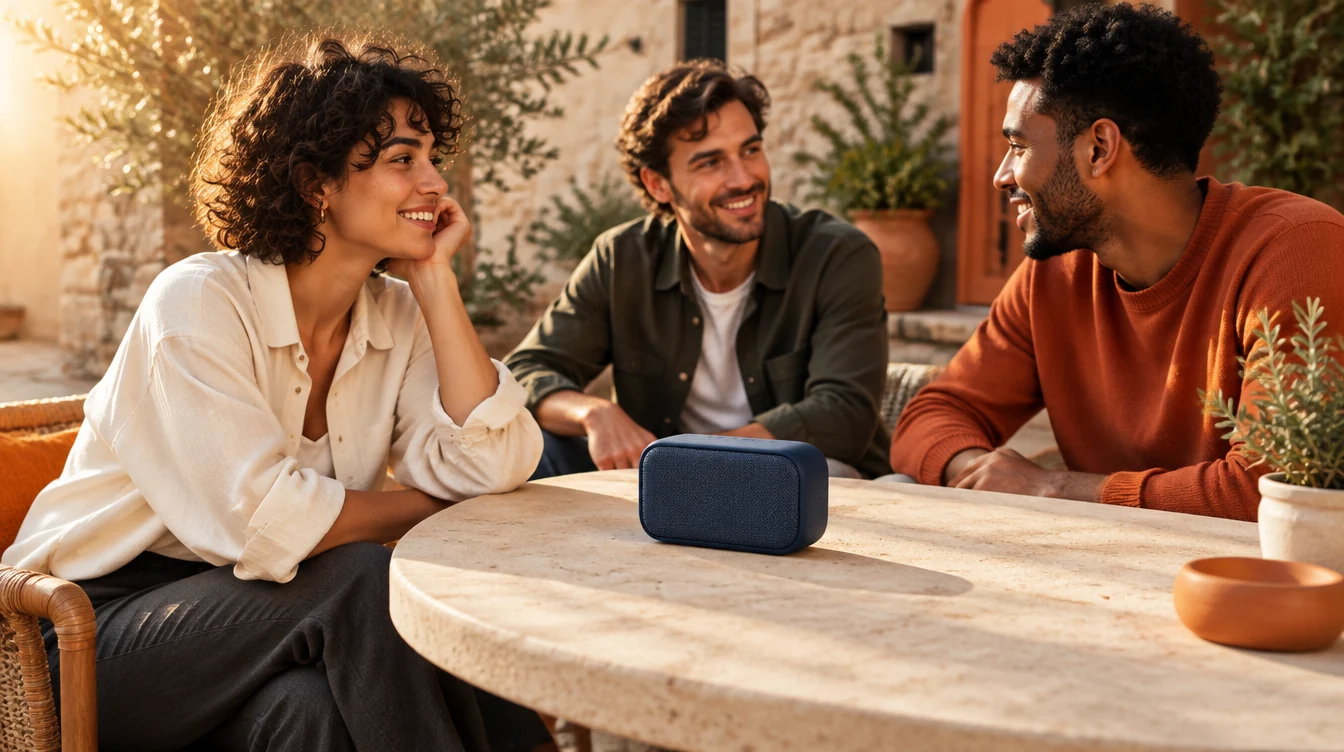
A convincing AI video needs a clear idea, recognizable characters, an accurate product, and shots that work together. A useful advertisement also gives the viewer a reason to care—and a clear next step.
That makes the brief just as important as the generation tool. This tutorial takes inspiration from Kaye Creatives’ AI commercial breakdown and develops it into a practical workflow for a smaller product campaign: planning, references, video generation, editing, and creative testing.
All ten prompts are original SEM Lion templates written for this guide. Test and adjust them in your chosen model. The PULSE brand and campaign are fictional teaching examples; the images illustrate the process.
What we’re making
Our example is a 24-second advertisement for PULSE, a fictional portable speaker. Someone arrives in a quiet courtyard with the speaker. Two friends join them. An ordinary afternoon becomes a shared moment.
The message: Bring the moment. We’ll use one location, three characters, and six shots—enough variety to tell a story while keeping production manageable.
- A writing assistant, such as Claude, for planning and prompt development.
- An image generator that accepts visual references.
- A video generator with reference-image or image-to-video controls.
- A video editor for assembly, sound, typography, and exports.
- Accurate product photographs and your approved brand assets.
Higgsfield can support the image and video stages. Its official consistency guide describes reusable references, Elements, and image-to-video workflows. Available models and controls vary, so check your selected model before building a shot plan around a particular feature.
1. Write the advertising brief
Start with the decision you want the viewer to make. For our speaker example, the business objective is a visit to the product page. The emotional idea is bringing people together. The visual story should support it without inventing claims about battery life, waterproofing, or sound quality.
Use the following prompt in your writing assistant. Replace every placeholder before you run it.
01Develop the advertising brief
Act as a creative strategist developing a short product video ad.

Brand: [BRAND]
Product: [PRODUCT]
Audience: [SPECIFIC AUDIENCE]
Customer situation: [WHEN OR WHY THEY WOULD WANT IT]
Verified product benefits: [APPROVED BENEFITS ONLY]
Campaign objective: [PRODUCT VISIT / PURCHASE / ENQUIRY]
Offer: [APPROVED OFFER, OR NONE]
Call to action: [ONE ACTION]
Primary placement and format: [PLACEMENT, ASPECT RATIO]
Target duration: [SECONDS]
Brand personality: [THREE CLEAR ATTRIBUTES]

Develop three distinct concepts.
For each, provide:
- The central idea in one sentence.
- The opening visual.
- How the product contributes to the story.
- A simple beginning, development, and ending.
- The closing message and CTA.
- Any feature or claim requiring confirmation.
- Likely production difficulties.

Keep each concept feasible with one location, up to three characters,
and six shots. Avoid invented specifications, testimonials, prices,
or performance claims.
Choose the concept whose message you can explain in one sentence. If the idea needs a long explanation, simplify it before spending generation credits.
2. Plan the edit before generating
Plan the finished advertisement before generating the individual clips. For PULSE, the proposed timeline looks like this:
| Final timing | Shot | What happens | Purpose |
|---|---|---|---|
| 0–3 seconds | Product opening | A tight view of the speaker; the camera begins to reveal the courtyard. | Establish the product. |
| 3–7 seconds | Setting | The main character sits beside the speaker in the quiet courtyard. | Establish the situation. |
| 7–11 seconds | Arrival | Two friends enter and approach the table. | Develop the story. |
| 11–16 seconds | Shared moment | The three exchange a look, smile, and move naturally with the music. | Express the emotional benefit. |
| 16–20 seconds | Product detail | A controlled close-up of the speaker. | Reinforce recognition. |
| 20–24 seconds | End card | Approved product image, logo, message, and CTA. | Make the next step clear. |
These are editing durations. Your generator may require longer clips. Generate a supported duration, then trim to the strongest usable section.
02Plan the six shots
Turn the selected concept into a six-shot production plan
for a 24-second advertisement.

For each shot, specify:
- Its purpose in the story.
- Final editing duration.
- Opening composition.
- One main subject action.
- One camera movement, or a locked camera.
- Required character, product, and location references.
- Continuity details carried from the previous shot.
- The simplest fallback if the shot proves difficult.

Keep the product visible in the opening.
Create the final end card in the video editor.
Use separate shots for complicated actions.
Remove unnecessary complexity now. Passing a small product between three people may take more effort than a reaction shot followed by a clean product close-up.
3. Build character references
A character reference establishes the person’s appearance before you place them in different scenes. Define the details that should remain stable: face, hair, clothing, accessories, and proportions.
For our main character, we’ll use a cream overshirt, charcoal trousers, and white trainers. Upload an identity reference you are entitled to use and, if needed, a separate outfit reference.
03Create the character reference sheet
Create a photographic character reference sheet using the attached
identity and outfit references.

Show the same adult person in three separate panels:
1. Front-facing head-and-shoulders portrait.
2. Side-profile portrait.
3. Full-body standing view.

Preserve the identity, skin tone, hairstyle, facial proportions,
and outfit across all three panels.

Wardrobe: cream overshirt, charcoal trousers, white trainers.
Expression: relaxed and neutral.
Background: plain light grey studio.
Lighting: soft, even, and consistent.
Style: natural commercial photography with realistic skin texture.

Exclude extra people, decorative objects, labels, and typography.
Compare the face across panels, check the outfit, and inspect hands and proportions. Save the approved sheet, then crop useful views into individual images. A clean portrait or full-body reference is easier to assign to a scene than an entire collage.
Repeat for the two supporting characters. Give each a distinct appearance and keep their wardrobe unchanged throughout the sequence.
4. Document the real product
Product accuracy deserves its own review. Gather clear photographs from the front, rear, side, and three-quarter angle. Include a detail image if buttons, ports, materials, or markings matter.
Your reference pack should show what the product actually looks like. An invented rear view can introduce a port or control that the real product does not have.
04Document the real product
Review these product photographs and create a reference brief.

Record only visible details:
- Overall shape and proportions.
- Main color and surface finish.
- Visible controls, ports, seams, and grille patterns.
- Logo position and orientation.
- Differences between the supplied views.

List any details that remain unclear.
Do not infer hidden features or invent missing views.

Create a short product-consistency checklist for reviewing
generated images and video frames.
For shots where fine product detail is essential, use an approved photograph or real product footage in the edit. This is especially useful for the final packshot.
5. Create a clean location
Build the environment separately so you can approve its layout and lighting before introducing characters. Our courtyard needs one recognizable table, enough space for three people, and a consistent direction of sunlight.
05Generate the clean location
Create a photographic location reference for a portable-speaker ad.

Location: a contemporary urban courtyard with warm stone walls,
a small round table, three simple chairs, and restrained planting.

Time: late afternoon.
Lighting: warm sunlight entering from camera-left.
Mood: relaxed, welcoming, and believable.
Composition: clear foreground, middle ground, and background.
Leave usable space around the table for three adults.

No people, products, signage, logos, or readable text.
Natural materials and realistic architectural proportions.
Select one approved location image and reuse it. Record a few details that you can check between shots:
Location: courtyard_approved
Light direction: camera-left
Table: round, pale stone
Speaker position: near the center of the table
Main character: seated on the right side of the composition
Supporting characters: approach from the left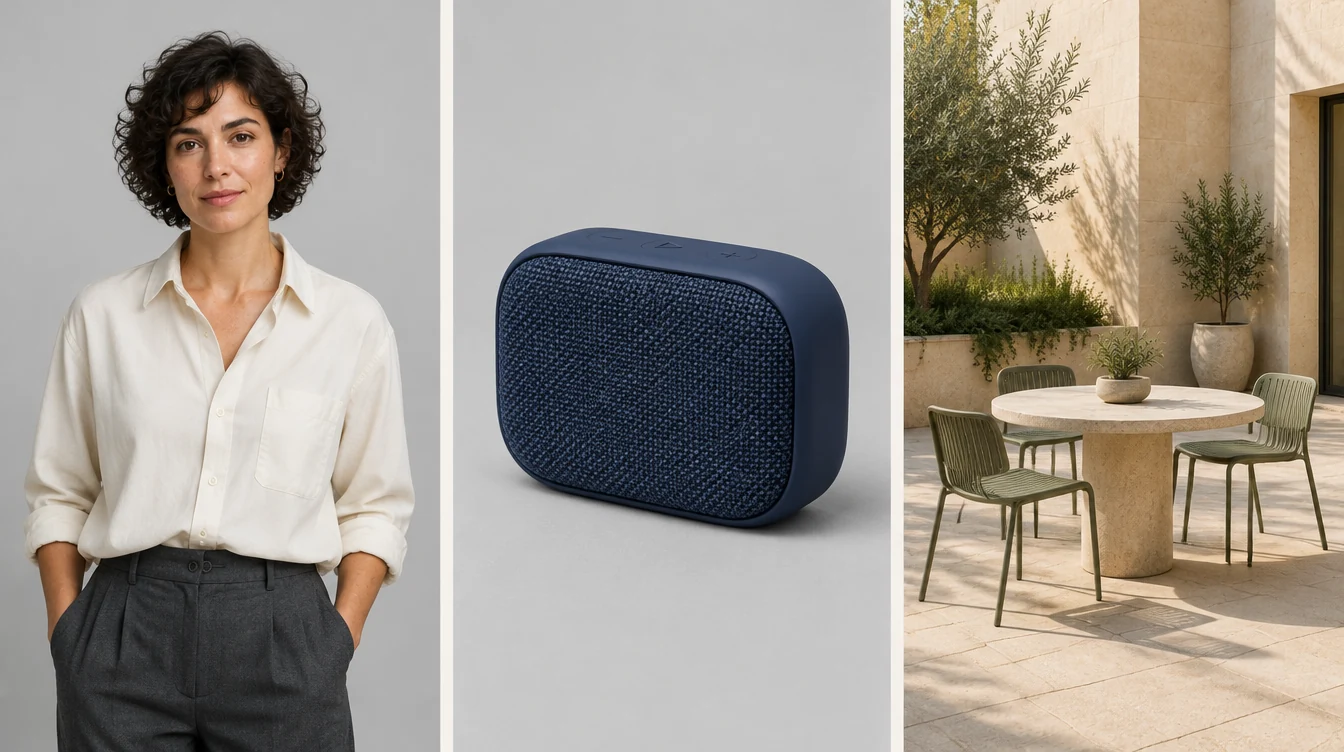
6. Name and connect your assets
Use filenames you can recognize quickly:
char_main_front_v01.png
char_main_full_v01.png
char_friend_a_v01.png
char_friend_b_v01.png

product_front_approved.png
product_threequarter_approved.png
location_courtyard_approved.png

shot_01_start_v01.png
shot_01_test_v01.mp4
shot_01_selected_v02.mp4
Upload the required images and assign them through your generator’s actual reference controls. A filename mentioned in a prompt does not automatically connect the image. If your tool supports Elements, reference slots, or asset mentions, select the corresponding asset in the interface.
For each shot, confirm that the intended references are attached before generating.
7. Approve each starting frame
Create and approve the opening image before adding motion. This separates composition problems from animation problems. For our shared-moment shot:
06Compose the approved starting frame
Create the opening frame for Shot 04 using the attached approved
character, product, and courtyard references.

Three adults sit around the courtyard table.
The main character wears the approved cream overshirt.
The two supporting characters match their references.

Place the approved navy speaker near the center of the table,
clearly visible and unobstructed.

The characters have just exchanged a friendly look.
Their expressions are subtle and natural.

Match the courtyard layout and warm sunlight from camera-left.
Use a medium-wide composition with clear separation between faces.
Keep the camera at seated eye level.

Output in the campaign's chosen aspect ratio.
No added text or graphic overlays.
Check the image at normal viewing size:
- Can the viewer identify the product?
- Do the characters match their references?
- Does the location match the other shots?
- Are hands, shadows, and contact with surfaces believable?
- Is there enough room for planned text?
Correct the still before animating it.
8. Animate one clear action
Once the starting image is approved, focus the motion prompt on what changes. A useful structure is:
07Use a simple motion-prompt structure
STARTING FRAME
Use the attached approved image.

SUBJECT ACTION
[ONE MAIN ACTION]

CAMERA
[ONE MOVEMENT OR A LOCKED CAMERA]

CONTINUITY
[DETAILS THAT MUST REMAIN STABLE]

ENDING
[THE POSITION OR EXPRESSION NEEDED FOR THE CUT]
For our shared-moment shot, that becomes:
08Animate the shared moment
Animate the attached approved courtyard image as a single
continuous shot.

The three adults exchange a brief look and smile.
Their shoulders move subtly with the rhythm of background music.
Keep the performance relaxed, with small natural gestures.

Use a slow, gentle camera push toward the group.

Preserve their faces, clothing, seating positions, and the courtyard
lighting. The navy speaker stays stationary on the table with the
same shape, color, and proportions.

End with the group settled into the moment.
No dialogue, camera cuts, added people, or text.
Start with one generation at the lowest suitable preview setting. If the model offers a lower-resolution draft mode, use it to judge action and framing.
A preview is useful when it answers specific questions: Does the action read? Is the product visible? Does the shot connect to the next one?
9. Diagnose and repair failures
A weak result needs a diagnosis. Identify the failure before deciding whether to revise the prompt or run another variation.
| Problem | First adjustment to try |
|---|---|
| The face changes | Simplify movement and strengthen the identity reference. |
| The product deforms | Reduce handling and camera rotation; use a stationary product shot. |
| The action feels crowded | Split it into two shots. |
| The product is hidden | Recompose the starting frame. |
| The location changes | Reuse the approved location and starting-frame references. |
| The clip begins too slowly | Start closer to the action or trim the opening in the edit. |
| Hands behave unnaturally | Simplify the gesture or cut to a reaction shot. |
09Repair a failed shot
Revise this shot prompt using the observed problems below.

Problems:
1. The speaker changes shape halfway through.
2. A hand covers the product during the strongest moment.
3. The camera moves too quickly.

Keep the approved location, characters, wardrobe, and lighting.

Change only:
- Keep the speaker stationary and unobstructed.
- Move the main character's hand to rest beside the product.
- Replace the camera movement with a very slow push.

Return a concise revised motion prompt.
Do not add new actions, characters, effects, or dialogue.
If the same failure repeats, simplify the shot design. Another batch is most useful when the shot is already close and you are choosing between small performance variations.
10. Edit the advertisement
Build the timeline using the planned sequence, then judge the rhythm. A generated clip may contain a strong two-second moment inside an otherwise weak take. Use it if it connects naturally with the surrounding shots.
Add the campaign elements in your editor:
- Approved logo and typography.
- Product name and main message.
- One CTA.
- Music you are entitled to use and deliberately selected sound effects.
- Captions if the advertisement includes speech.
For PULSE, the final card could read:
PULSE
Bring the moment.

Explore the speaker.
[BRAND WEBSITE]
Use an approved product image for this card so that the final product view is accurate. Watch the advertisement with sound on and muted. The music establishes mood; the visuals and text still need to communicate the product and next step.
Before export, check the actual placement preview for cropped text, obscured products, and interface overlays. Review the export again after changing aspect ratio.
11. Track production cost
Treat generation as a production budget. Record:
Shot ID
Model and settings
Prompt version
Number of attempts
Credits used
Usable result: yes / no
Selected filename
Reason for rejection
Credits per selected take = total credits spent on that shot ÷ selected usable takes. If there are no usable takes, record the spend as unsuccessful production cost rather than dividing by zero.
Keep subscription costs, purchased credits, editing time, and other assets separate when estimating the campaign’s full cost. Set an attempt limit for difficult shots. Once you reach it, redesign the action or substitute a simpler visual.
12. Test useful variations
Once the main version works, develop a small test around one variable. Keep the middle sequence, offer, CTA, and audience consistent while changing the opening:
| Version | Opening | Question |
|---|---|---|
| A | Tight product close-up | Does immediate product recognition attract useful attention? |
| B | Main character alone in the courtyard | Does the situation create more interest? |
| C | The group already sharing the moment | Does the emotional outcome provide the strongest opening? |
10Design three opening variations
Create three opening variations for this approved advertisement.

Keep the product, main sequence, offer, closing card, and CTA unchanged.
Change only the opening visual and its accompanying headline.

For each variation, provide:
- The opening shot.
- Headline.
- Creative hypothesis.
- Additional assets required.
- A primary business outcome to assess.
- Supporting attention metrics.
- Conditions that would make the comparison inconclusive.

Use the supplied campaign objective and measurement definitions.
Do not predict results or invent performance benchmarks.
Choose the evaluation criteria before launching. Attention metrics help explain the opening’s performance; purchases, qualified enquiries, or another defined business outcome determine whether the campaign supports its objective.
Allow enough evidence for the decision. A handful of views or clicks cannot establish a reliable winner.
Make the next production easier
Keep the approved references, selected prompts, source files, and editing project together. That gives you a useful starting point for the next campaign: the same product in a different setting, a new opening for another audience, or a shorter version with a different message.
At SEM Lion, the practical value of AI creative production comes from connecting production choices to a clear commercial purpose. Define the message, direct the visuals, review the details, and measure the response.
Build your next product campaign.
Talk to SEM Lion about a creative workflow built around your product, audience, and business objective.
AI-assisted editorial tutorial with original SEM Lion prompts. Illustrations created with Higgsfield. The fictional example and prompts require testing; no campaign results are claimed. AI policy